Create your Binance API key safely
8 steps. Roughly 5 minutes. Most important rule: leave withdrawals OFF. The bot doesn't need them, and disabling them means no one — including us — can move funds out of your Binance account.
Log in and open API Management
Go to binance.com, log in, then hover over your profile icon in the top-right corner. Click "API Management" in the dropdown menu.
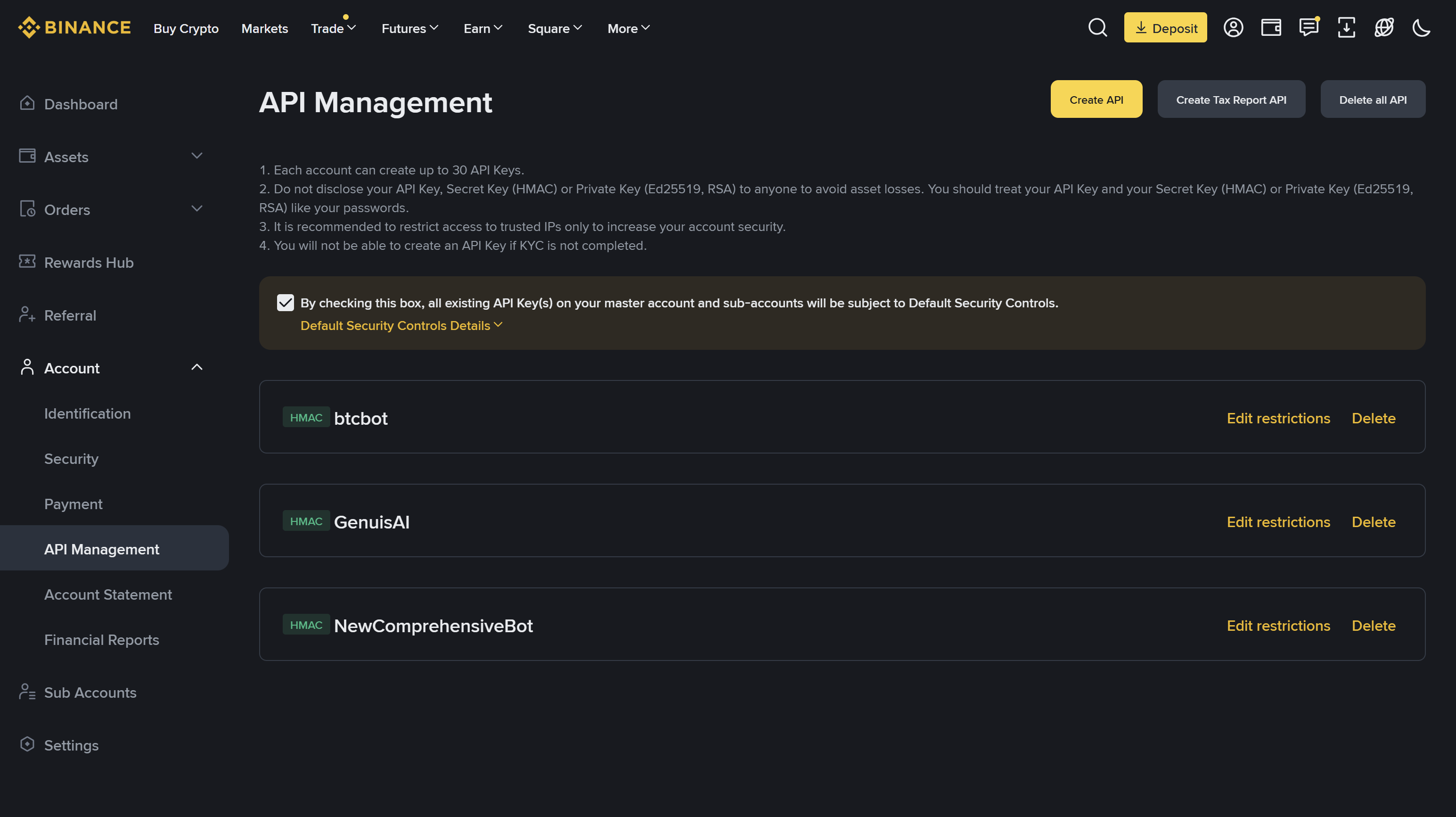
Click "Create API"
On the API Management page, click the yellow "Create API" button. Binance will ask you to verify with 2FA + email + phone code before continuing (this is normal).
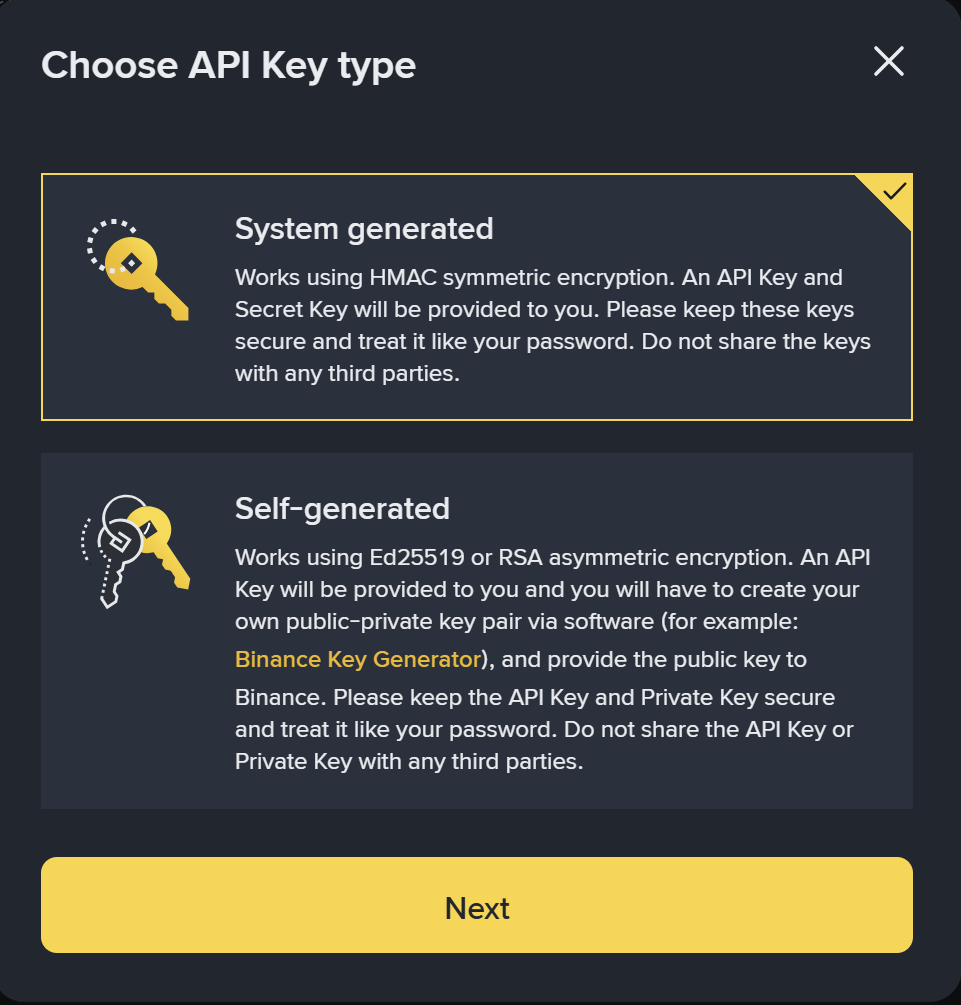
Choose "System generated"
Binance asks which type of key. Select "System generated" (NOT "Self-generated"). The Self-generated option is for users managing their own private keys — you don't need that.
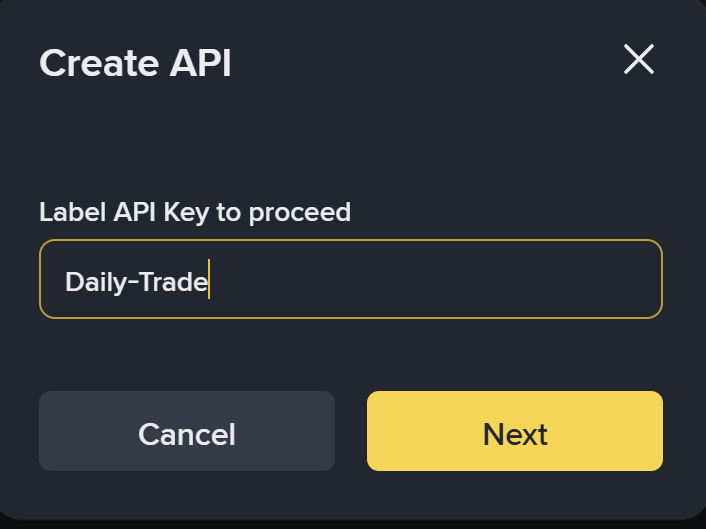
Name your API key
Give your key a clear name like DailyTrade-Bot. Binance limits the name to 20 characters and alphanumeric only.
Complete the 2FA + email + phone code verification when prompted.
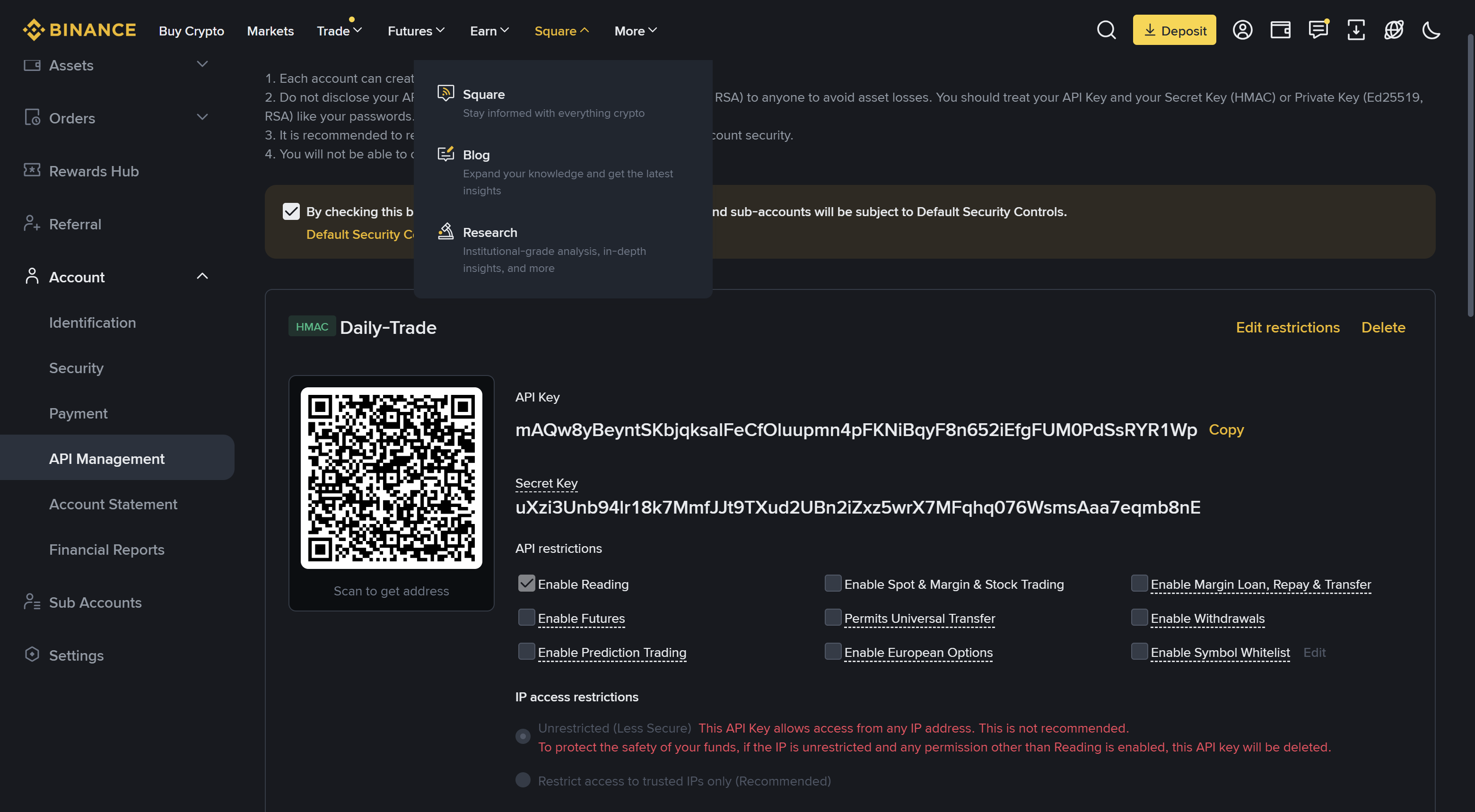
Set permissions — THIS IS THE CRITICAL STEP
After creation, Binance shows your key with default permissions. Click "Edit restrictions". Configure EXACTLY like this:
- ✓ Enable Reading — checked (default, keep on)
- ✓ Enable Spot & Margin Trading — check this
- ✕ Enable Withdrawals — LEAVE UNCHECKED
- ✕ Enable Futures — leave unchecked
- ✕ Enable Internal Transfer — leave unchecked
- ✕ Permits Universal Transfer — leave unchecked
- ✕ Enable Symbol Whitelist — leave unchecked (we trade BTC/USDT)
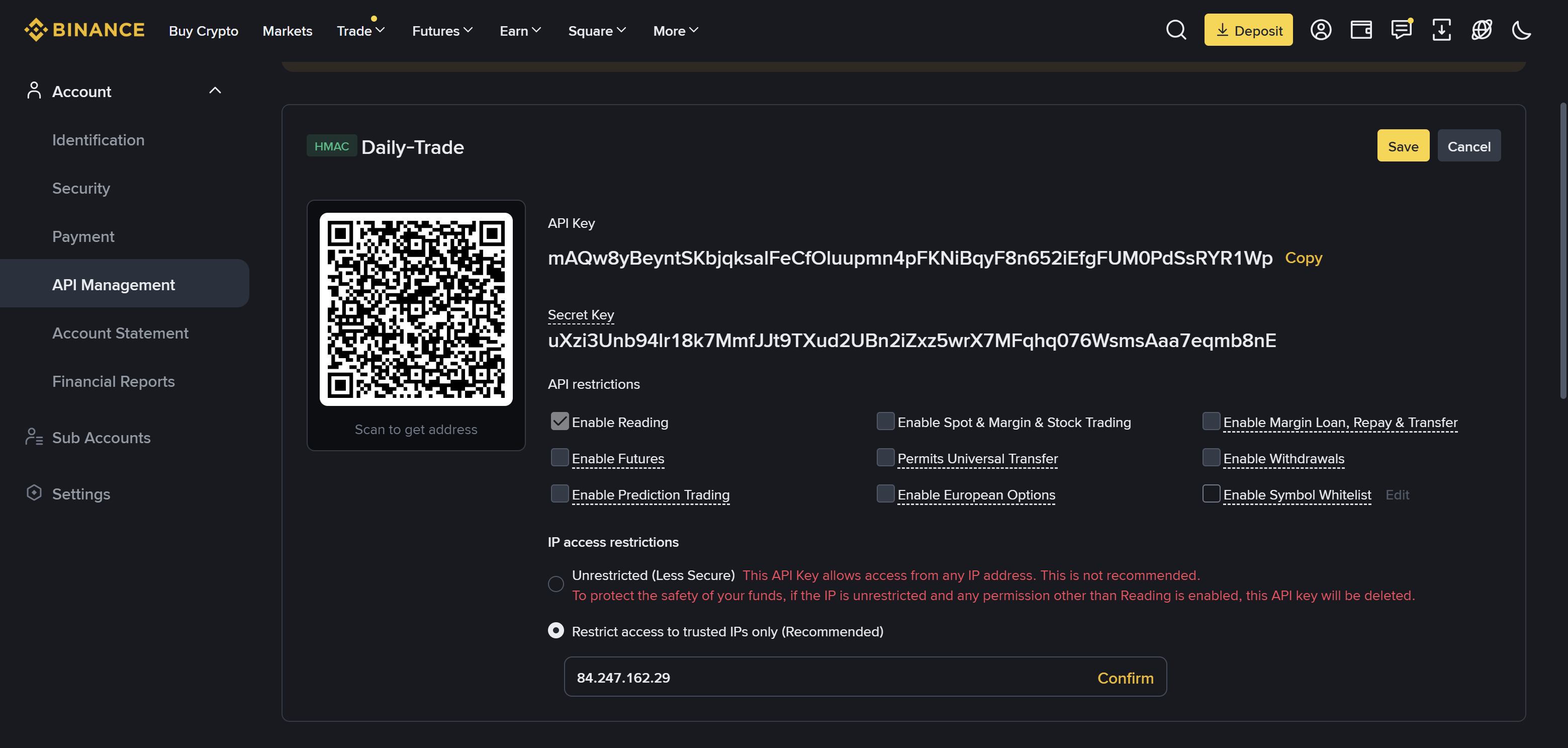
IP restriction — recommended path
Binance asks if you want to restrict the key to specific IP addresses. We strongly recommend choosing "Restrict access to trusted IPs only" and entering our trading server IP below. This is the safer option.
Daily Trade bot server IP — paste this into Binancedaily-trade.app too.
Alternative (not recommended): Unrestricted access. If for some reason you can't whitelist the IP, you can pick "Unrestricted (Less Secure)". Two downsides: (1) Binance will auto-expire your key after 90 days and your bot will silently stop — you'll have to recreate the key, and (2) Binance shows persistent security warnings. Since you already disabled Withdrawals in Step 5, Unrestricted is not catastrophic, just inconvenient.
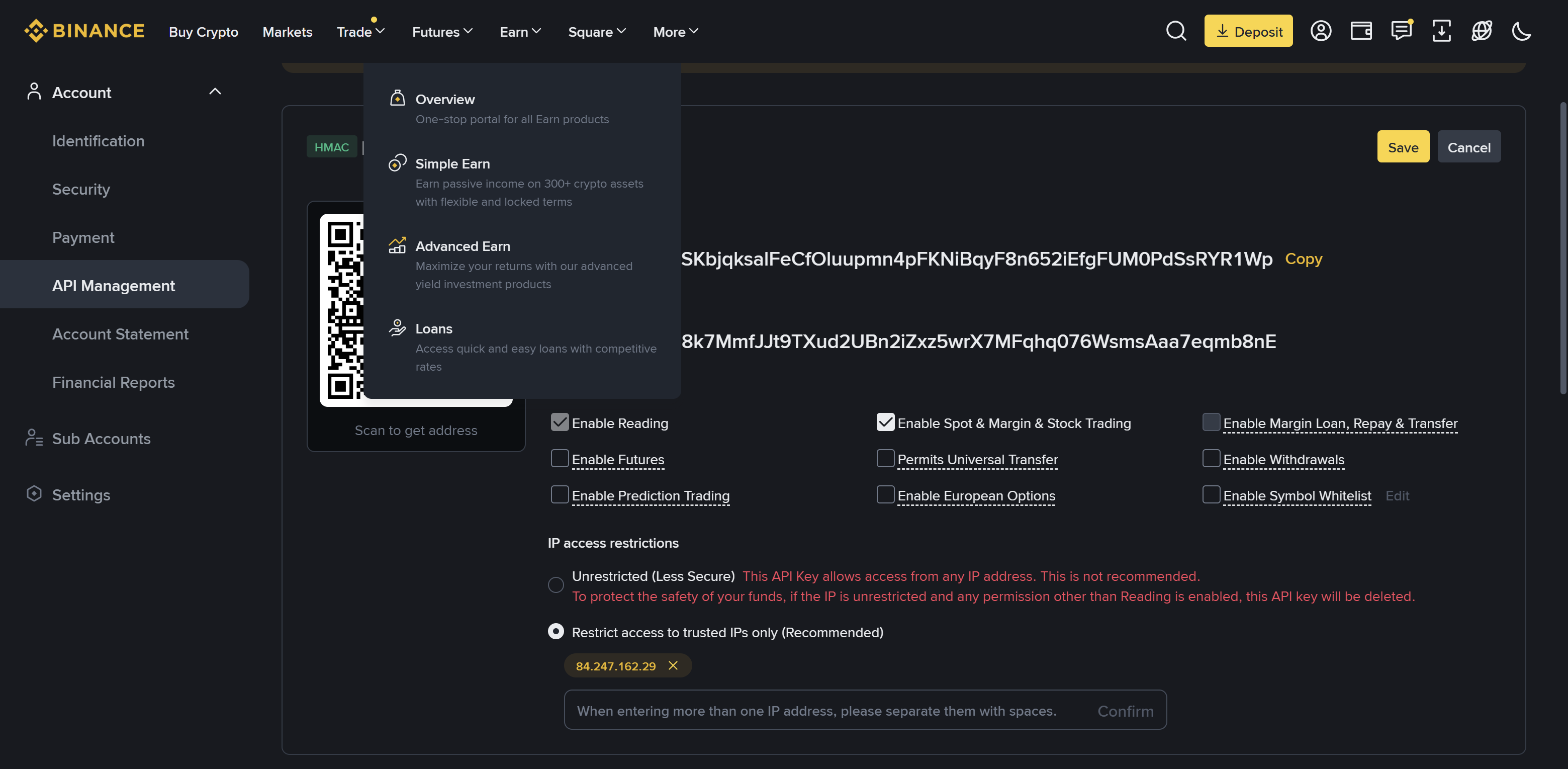
Save and copy your keys
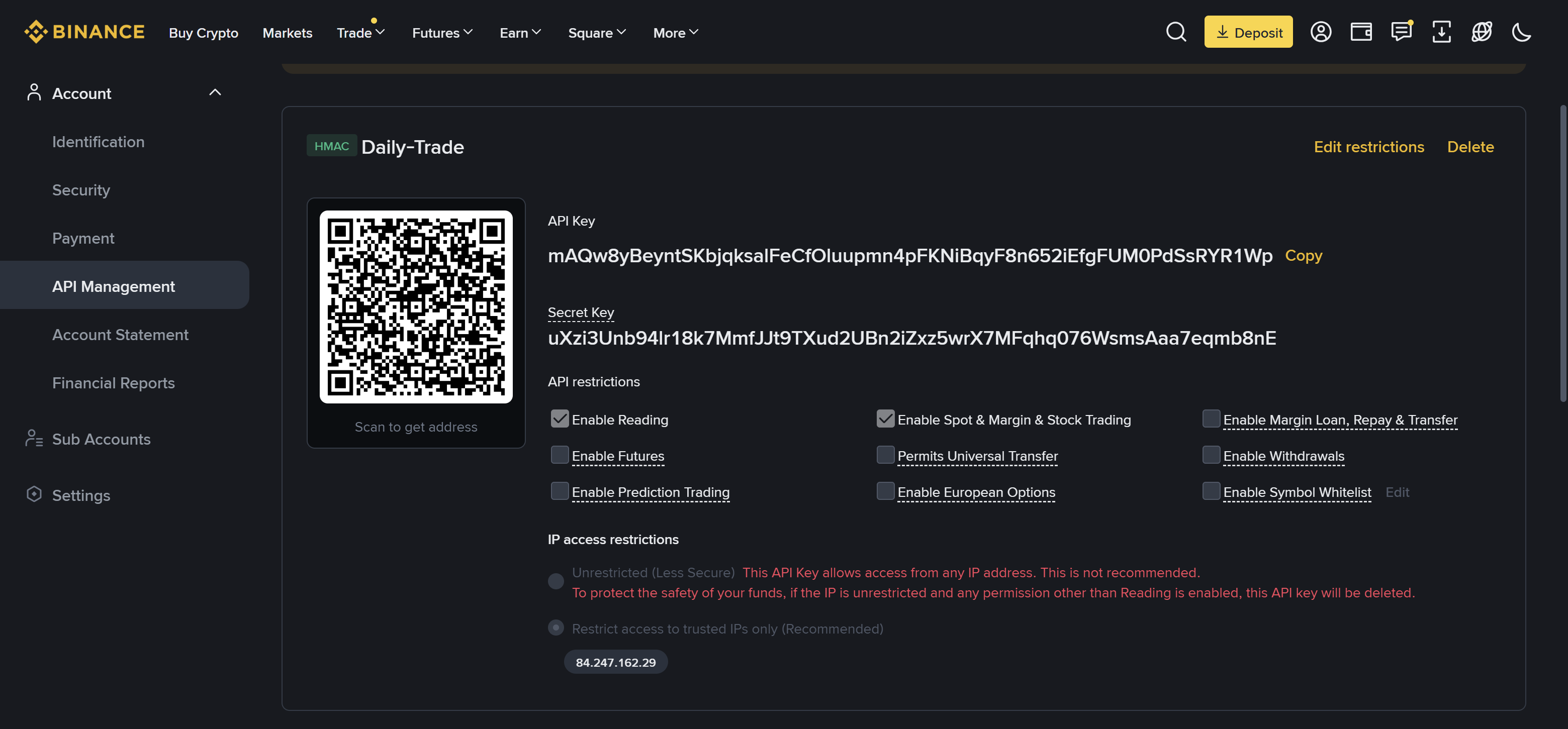
Click Save. Binance shows you two strings:
- API Key — a long alphanumeric string
- Secret Key — a longer string, shown ONLY ONCE
Paste into Daily Trade Settings
Open Daily Trade → Settings → Binance tab. Paste:
- The API Key into the API Key field
- The Secret Key into the API Secret field
- Set starting capital (start small — $50-$100)
- Click Save
Ready to set up your account?
If you haven't created your Daily Trade account yet, that's step zero.
Sign up first →Troubleshooting
"Bot says NOTIONAL or filter error" — Binance requires a minimum order size of ~$5 USDT per order. With 5 grid levels, you need at least $25 of starting capital. We recommend $50 minimum for comfortable margins.
"Bot says insufficient balance" — Your USDT must be in the Spot Wallet, not Funding, Margin, or Futures. Use Binance's "Transfer" function to move it to Spot.
"How do I revoke the key later?" — Binance → API Management → find your "DailyTrade-Bot" key → click "Delete". The bot loses access immediately. Your funds were never at risk.