Create your Bybit API key safely
7 steps. Roughly 5 minutes. Most important rule: leave withdrawals OFF. The bot doesn't need them, and disabling them means no one — including us — can move funds out of your Bybit account.
Log in and open API Management
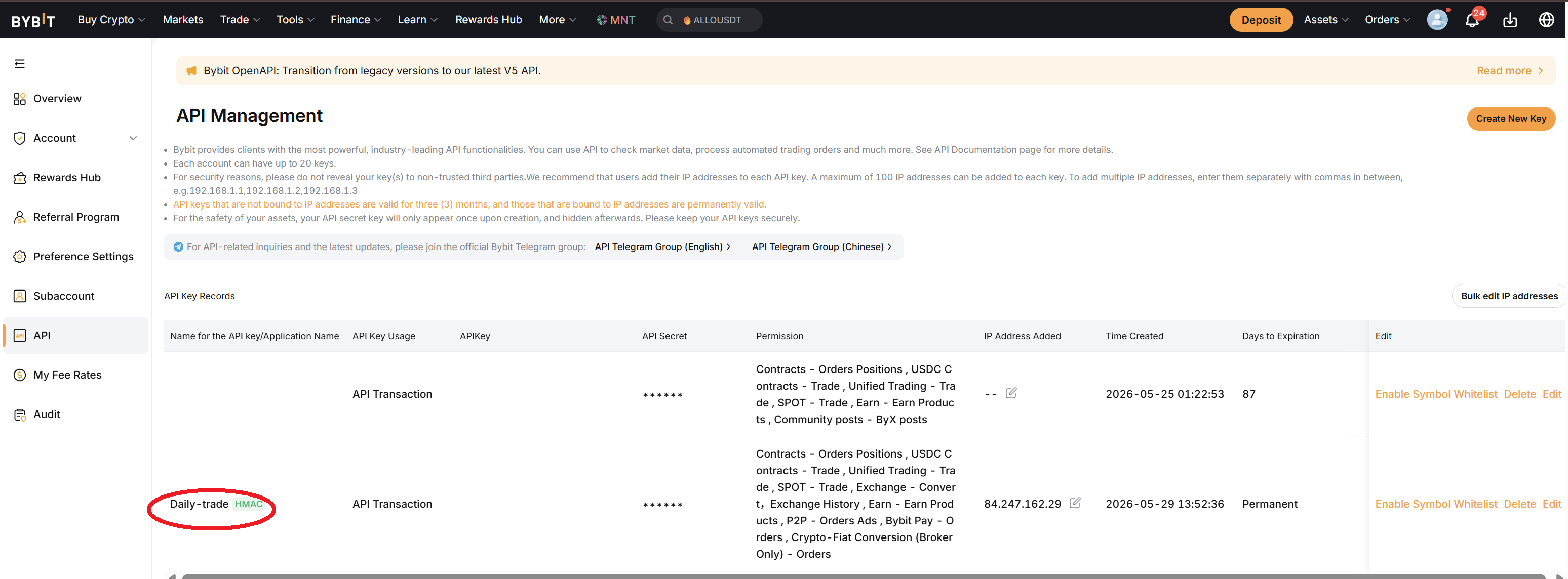
Go to bybit.com, log in, then hover over your profile icon in the top-right corner. Click "API" in the dropdown menu.

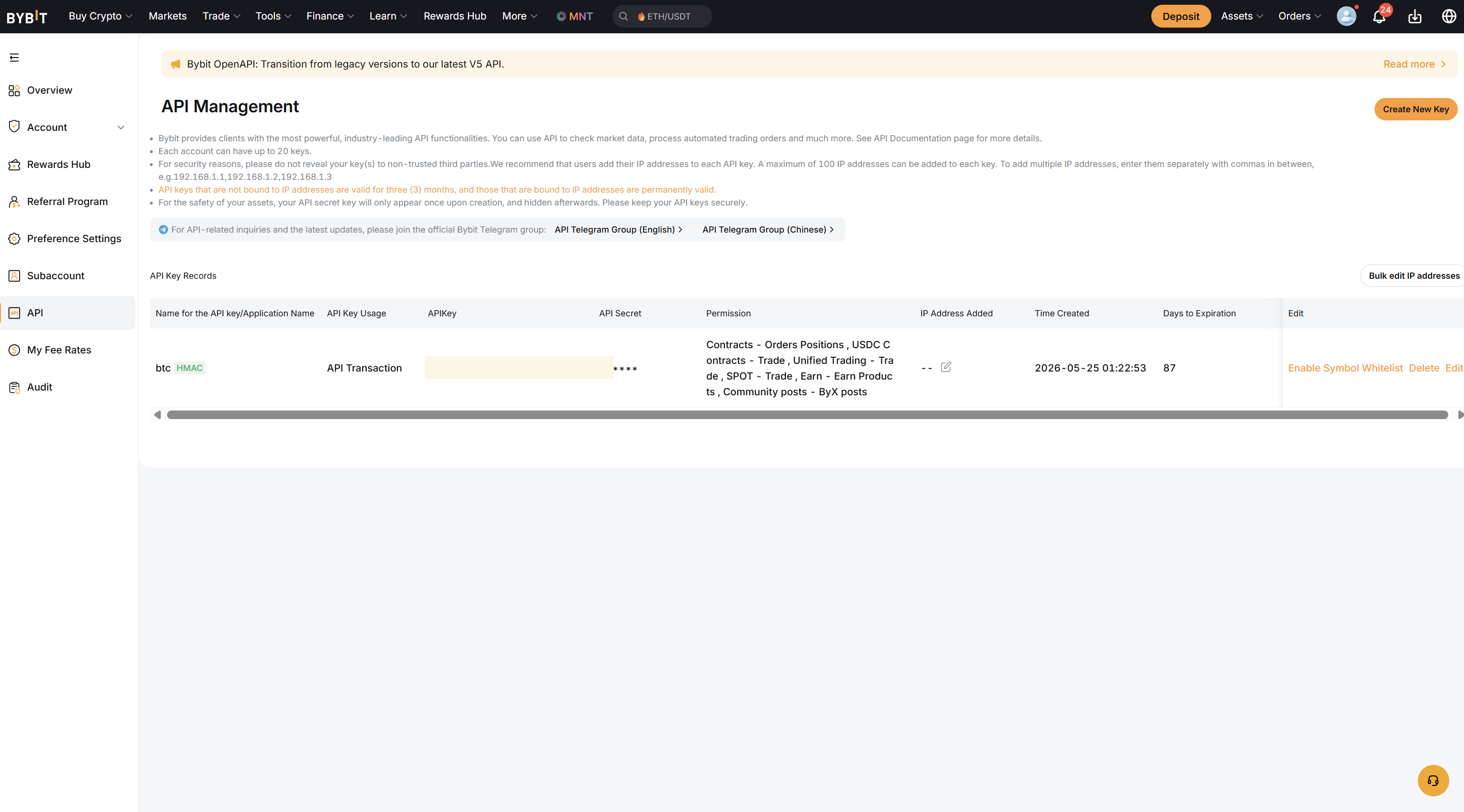
Click "Create New Key"
You'll land on the API Management page. Click the green "Create New Key" button (top-right of the page). Bybit may ask you to verify with 2FA before continuing.
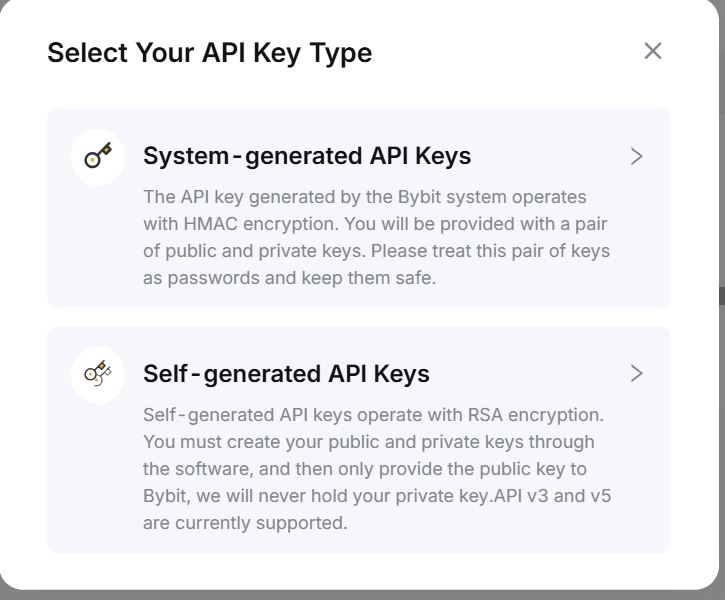
Choose "System-generated API Keys"
Bybit asks which type of key. Pick "System-generated API Keys" (NOT "Self-generated"). Self-generated is for advanced users who manage their own private keys — you don't need that.
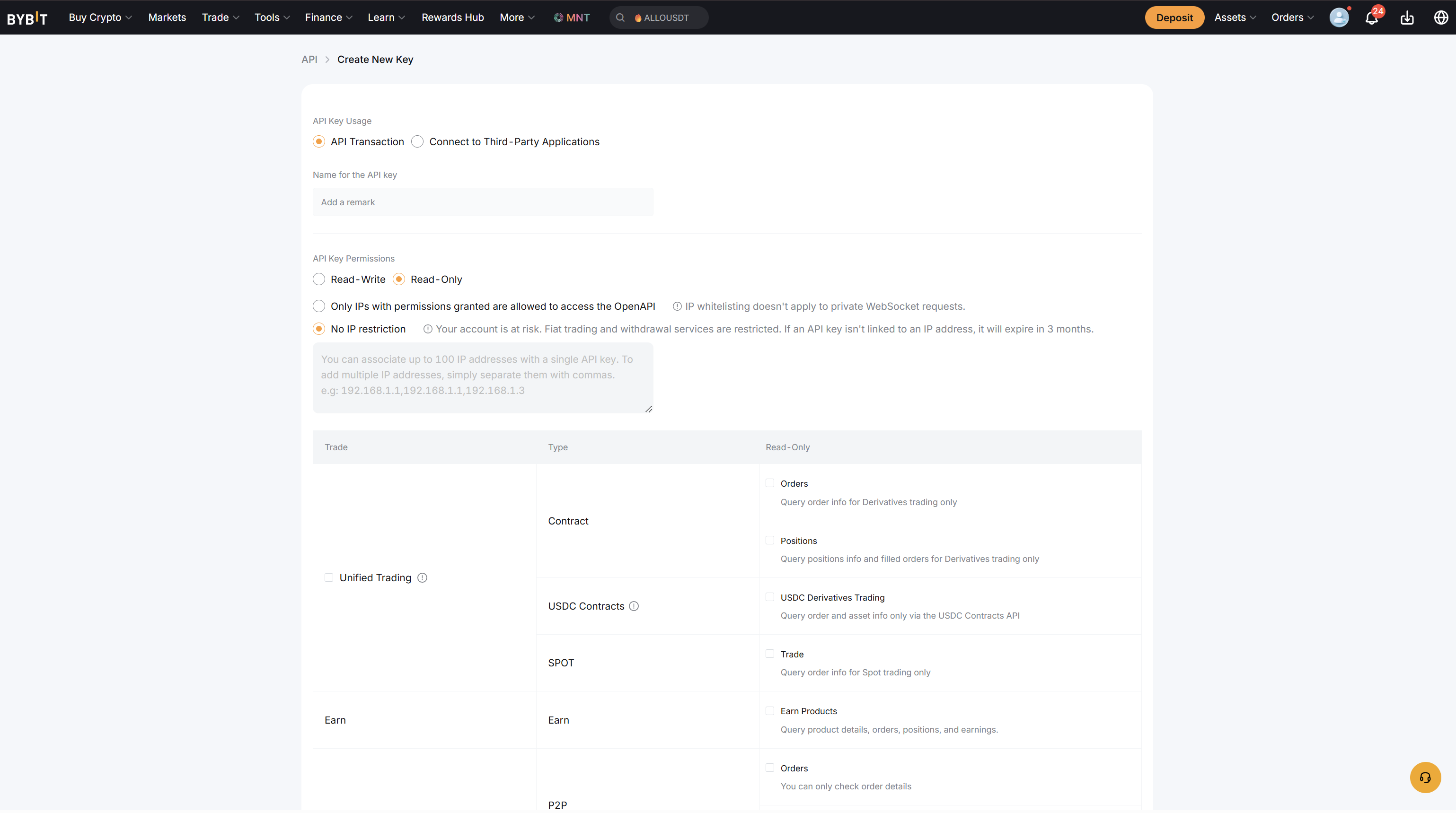
Name your key and set usage type
Give the key a descriptive name like DailyTrade-Bot so you remember what it's for.
- API Key Usage: select "API Transaction"
- API Key Permissions: see the next step
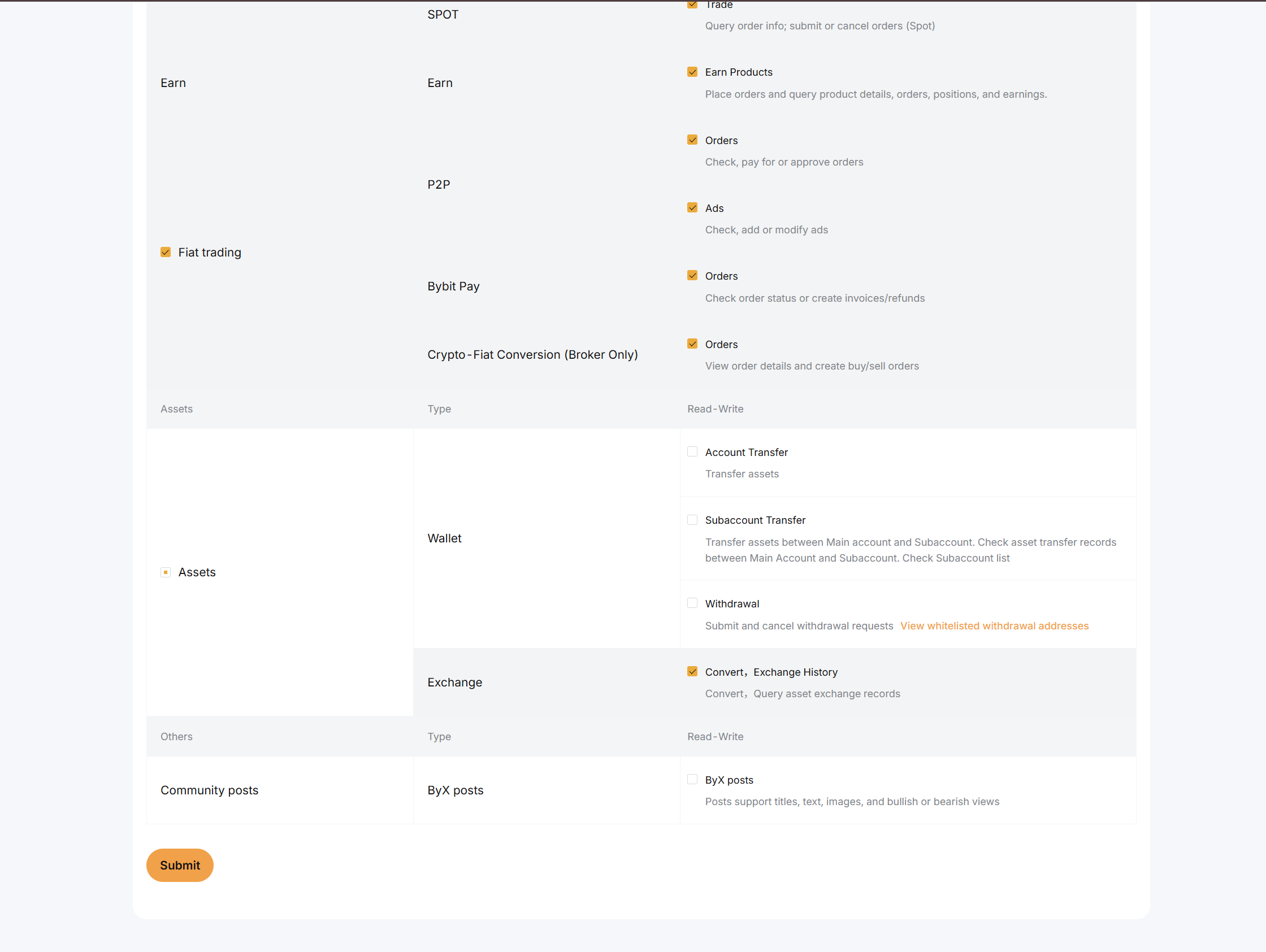
Set permissions — THIS IS THE CRITICAL STEP
Bybit shows you a list of permissions. Configure them EXACTLY like this:
- ✓ Contract — DO NOT CHECK (we don't use futures)
- ✓ Spot — Check "Spot Trade" (this is what the bot needs)
- ✓ Wallet — Check "Account Transfer" only if you want; not required. Do NOT check anything related to "Subaccount Transfer."
- ✕ Withdraw — LEAVE UNCHECKED
- ✕ Earn / Copytrading / Exchange / NFT — LEAVE UNCHECKED
If you leave IP empty, the key still works fine. If you add the IP, the key will only work from our server — meaning even if the key is stolen, it can't be used elsewhere. Your funds are already protected by Withdraw being off; this is just an extra lock.
Submit and copy your keys
Click Submit. Bybit will ask for 2FA verification (Google Authenticator code + email code). After verification, Bybit shows you two strings:
- API Key — a long string starting with letters/numbers
- API Secret — a longer string, shown ONLY ONCE
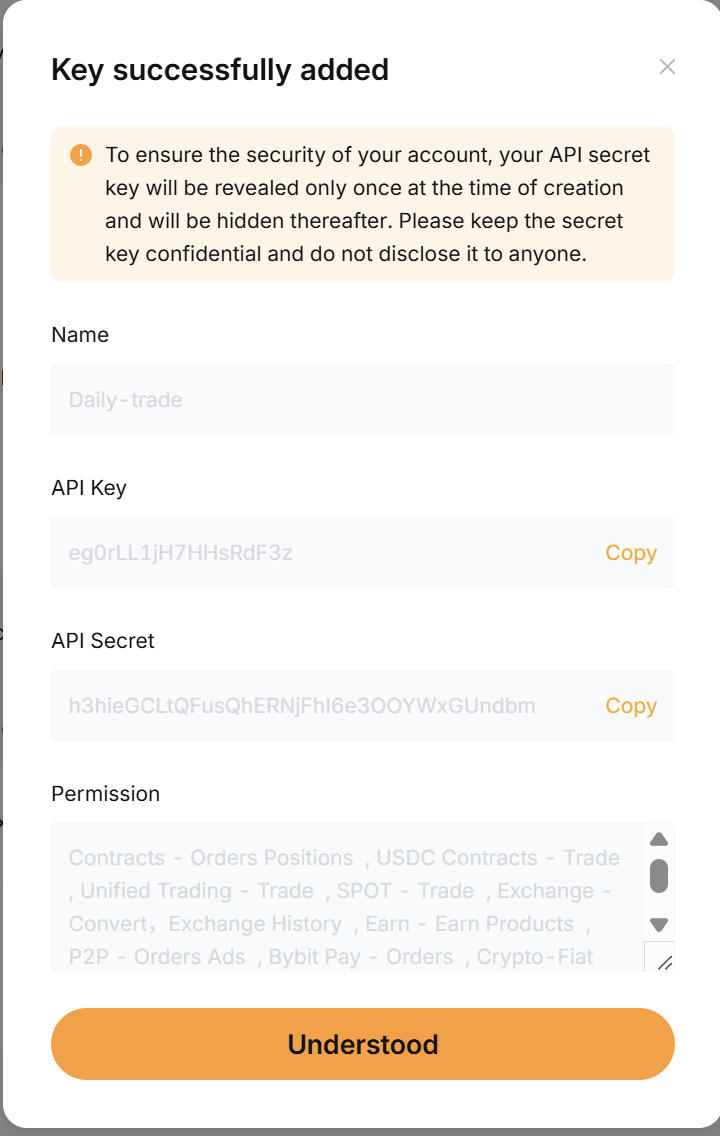
Paste into Daily Trade Settings
Open Daily Trade → Settings → Bybit tab. Paste:
- The API Key into the API Key field
- The API Secret into the API Secret field
- Set your starting capital (start small — $50-$100)
- Click Save
Ready to set up your account?
If you haven't created your Daily Trade account yet, that's step zero.
Sign up first →Troubleshooting
"Bot Enabled but nothing happens after 60 seconds" — Check that you saved BOTH the API Key and Secret. Re-paste from your password manager if needed. If still nothing, email info@daily-trade.app.
"Bot says insufficient balance" — Make sure your USDT is in the Spot Wallet, not the Funding or Derivatives wallet. Use Bybit's "Internal Transfer" to move it.
"How do I revoke the key later?" — Same place you created it: Bybit → API Management → find your "DailyTrade-Bot" key → click Delete. The bot loses access immediately.